
What does it look like when my code has been accepted?
When you’ve entered your code and pressed Submit, you should see a link appear just where you entered the code – it looks like this:
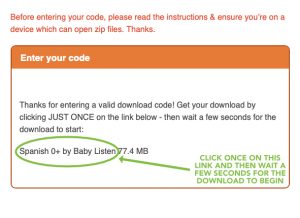
Click once on the link to start the download. Please then don’t refresh the page – with some devices/connections, you may need to wait a few seconds for the download to start.
Please wait until the zip file has finished downloading before trying to open it.
Where is my zip file?
Your zip file will be found wherever your downloads are stored – by default this is the Downloads folder.
On Windows 10:
From the taskbar, select File Explorer. Under Quick Access, choose Downloads.
If you have an earlier version of Windows, we suggest searching online to find how to access the Downloads folder.
On a Mac:
Click on the Finder icon at the bottom left of the screen. In the Finder window that appears, click on downloads – which is in the left-hand sidebar, under favourites.
On a phone or tablet:
We recommend redeeming your code and downloading the zip file on a desktop/laptop computer, unless you are certain that your particular mobile device is able to open zip files. Please bear in mind that your code only works for one download, so we would advise you to download the album onto your computer, from where you can then share it with other (mobile) devices.
I can’t see my download in the downloads folder
If you can’t see the zip file of this download straight away, it might be that your downloads are not organised with the most recent first. To do this:
On Windows 10: In the Downloads folder, click on Date modified at the top of the column to re-order.
On Mac: In the finder menu, choose View > Arrange by > Date added.
Alternatively, use the search function to search for this download by name.
Its name is: Spanish+0++by+Baby+Listen.zip
If you type Spanish+ for example, that should be enough
How do I open a zip file?
Both Windows 10 machines and Macs come with the software to extract zip files. The zip file will extract into an extracted folder which will appear alongside the original zip file and which has the same name – in this case it will be:
Spanish+0++by+Baby+Listen
On Windows 10:
Find the zip file you want to open (as above).
Double click on it.
When Compressed Folder Tools appears at the top of your window – usually in pink – choose Extract > Extract all and then again Extract at the bottom of the pop-up window that appears.
Wait for the extracted folder to appear. If it doesn’t open automatically, double click on it to open.
You’ll see all the tracks inside, ready to be played.
On a Mac:
Find the zip file you want to open (as above).
Double click on it.
Wait for the extracted folder to appear. If it doesn’t open automatically, double click on it to open.
You’ll see all the tracks inside, ready to be played.
I’m getting an error message
My error is: You have entered an invalid download code – please try again.
If you get this message, please take a moment to make sure you’re entering the code exactly as shown, using UPPER CASE and lower case letters just as on your Download Card.
As a further check, please ensure that the code you enter has 12 characters.
My error is: You have made too many unsuccessful download attempts today. Please wait and try again.
This could be because you’ve clicked on the field to type in the code and then you’ve pressed ENTER by accident a couple of times – or that you’ve refreshed the page.
Open a new copy of the website and start again.
There’s no need to refresh the page – just enter the code exactly as shown on your Download Card and press Submit.
My error is: You have reached the maximum number of allowed downloads for this code.
Remember that there is just one download available per code.
If you’ve already entered a correct code and clicked to download your file, check your Downloads folder using the steps near the top of this page under: Where is my zip file? and I can’t see my download in the Downloads folder.
If you still haven’t got your download after following these steps, please contact us – explaining what the issue is and including the code if necessary – and we’ll do our best to sort it out.